MS Word Insert Tab
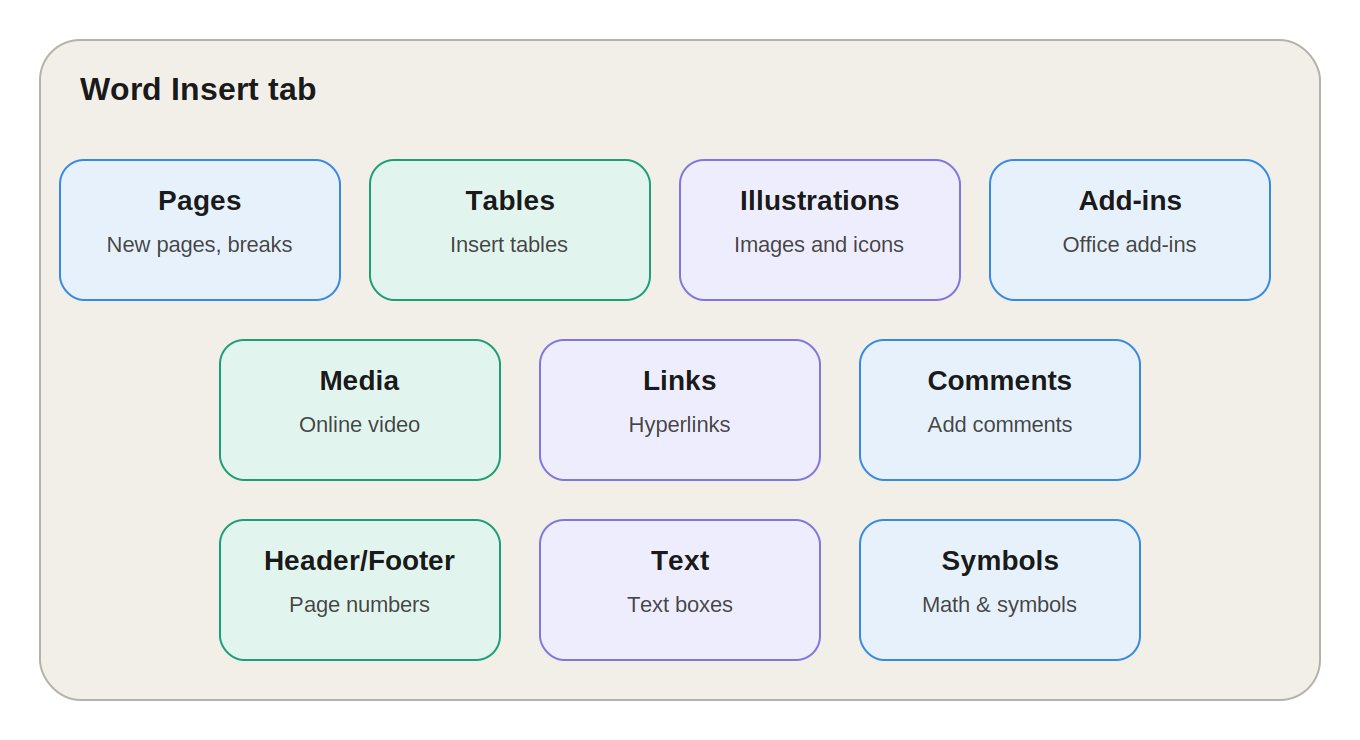
MS Word का Insert Tab Ribbon का दूसरा प्रमुख Tab है, जो सामान्यतः Home Tab के बाद आता है। जहाँ Home Tab का उपयोग text formatting और editing के लिए किया जाता है, वहीं Insert Tab का उपयोग document में नए elements और objects जोड़ने के लिए किया जाता है।
Insert Tab की मदद से आप document में:
-
Pages
-
Tables
-
Pictures
-
Shapes
-
Icons
-
SmartArt
-
Charts
-
Links
-
Comments
-
Header & Footer
-
Text Box
-
WordArt
-
Equations
-
Symbols
आदि insert कर सकते हैं।
Insert Tab में अलग-अलग Word versions के अनुसार Groups और options में थोड़ा अंतर हो सकता है।
1. Pages Group
Pages Group का उपयोग document में नए pages और page breaks insert करने के लिए किया जाता है।
Cover Page
Cover Page का उपयोग document की शुरुआत में एक professionally designed Title Page insert करने के लिए किया जाता है।
इसमें predefined templates उपलब्ध हो सकते हैं, जिनमें आप:
-
Title
-
Author Name
-
Date
-
Company Name
जैसी information भर सकते हैं।
Example:
Project Report या Assignment की शुरुआत में Cover Page लगाया जा सकता है।
Blank Page
Blank Page option का उपयोग cursor की current position पर एक नया खाली page insert करने के लिए किया जाता है।
यह तब useful है जब आपको document के बीच में एक नया page चाहिए।
Page Break
Page Break का उपयोग current page को समाप्त करके अगला content नए page से शुरू करने के लिए किया जाता है।
Shortcut: Ctrl + Enter
Example:
यदि किसी chapter को नए page से शुरू करना है, तो Page Break का उपयोग किया जा सकता है।
2. Tables Group
Table
Table का उपयोग document में rows और columns के रूप में data को व्यवस्थित करने के लिए किया जाता है।
Table insert करने के कई तरीके हो सकते हैं:
-
Grid से rows और columns select करना
-
Insert Table से custom rows/columns देना
-
Draw Table से manually table draw करना
-
Convert Text to Table से existing text को table में convert करना
-
Excel Spreadsheet insert करना
-
Quick Tables से predefined tables insert करना
Insert Table
Insert Table option से आप अपनी आवश्यकता के अनुसार:
-
Number of Columns
-
Number of Rows
set करके custom table बना सकते हैं।
Draw Table
Draw Table का उपयोग manually table और cells draw करने के लिए किया जाता है।
Convert Text to Table
यदि data पहले से text format में है, तो उसे Convert Text to Table option से table में बदला जा सकता है।
Excel Spreadsheet
Excel Spreadsheet option से Word document के अंदर Excel worksheet/object insert किया जा सकता है।
यह numerical data और calculations के लिए useful है।
Quick Tables
Quick Tables में कुछ predefined table templates उपलब्ध होते हैं।
इनका उपयोग जल्दी से ready-made tables insert करने के लिए किया जा सकता है।
3. Illustrations Group
Illustrations Group का उपयोग document में visual elements और graphical objects add करने के लिए किया जाता है।
Pictures
Pictures option से computer/device में stored image को Word document में insert किया जा सकता है।
Images document को अधिक attractive और informative बनाने में मदद करती हैं।
Shapes
Shapes का उपयोग विभिन्न graphical shapes insert करने के लिए किया जाता है।
उदाहरण:
-
Line
-
Arrow
-
Rectangle
-
Circle
-
Triangle
-
Callout
-
Flowchart Shapes
इनका उपयोग diagrams और flowcharts बनाने में किया जाता है।
Icons
Icons predefined vector graphics होते हैं।
इनमें अलग-अलग categories के:
-
People
-
Objects
-
Symbols
-
Technology
-
Business
आदि icons मिल सकते हैं।
Vector icons को resize करने पर सामान्यतः उनकी quality खराब नहीं होती।
3D Models
3D Models का उपयोग document में तीन-dimensional objects insert करने के लिए किया जाता है।
इन models को document में अलग-अलग directions में rotate करके देखा जा सकता है।
SmartArt
SmartArt का उपयोग information को visual diagram के रूप में present करने के लिए किया जाता है।
SmartArt के examples:
-
Process
-
Cycle
-
Hierarchy
-
Relationship
-
Matrix
-
Pyramid
Example:
Organization Chart बनाने के लिए SmartArt का उपयोग किया जा सकता है।
Chart
Chart का उपयोग numerical data को graphical form में display करने के लिए किया जाता है।
Common Chart types:
-
Column Chart
-
Bar Chart
-
Line Chart
-
Pie Chart
-
Area Chart
Word में Chart insert करने पर data enter या edit करने के लिए Excel-based data sheet/interface का उपयोग किया जा सकता है।
Screenshot
Screenshot option से किसी open window का screenshot document में insert किया जा सकता है।
इसके अलावा Screen Clipping की मदद से screen के किसी specific area को capture किया जा सकता है।
4. Add-ins Group
Add-ins Group का उपयोग Microsoft Word की functionality को additional tools के माध्यम से बढ़ाने के लिए किया जाता है।
Get Add-ins
Get Add-ins से उपलब्ध Office Add-ins को browse और install किया जा सकता है।
इनमें अलग-अलग प्रकार के tools हो सकते हैं, जैसे:
-
Dictionary
-
Citation Tools
-
Productivity Tools
-
Writing Tools
My Add-ins
My Add-ins में पहले से installed या available Add-ins को access किया जा सकता है।
5. Media Group
कुछ Word versions में Media Group उपलब्ध हो सकता है।
Online Video
Online Video का उपयोग supported online video content को document में embed करने के लिए किया जा सकता है।
यह feature version और Microsoft 365 configuration के अनुसार अलग हो सकता है।
6. Links Group
Links Group का उपयोग document में hyperlinks और internal references बनाने के लिए किया जाता है।
Link
Link का उपयोग किसी text या object को hyperlink में बदलने के लिए किया जाता है।
Link के माध्यम से आप:
-
Website
-
File
-
Email Address
-
Same Document Location
पर जा सकते हैं।
Shortcut: Ctrl + K
Example:
यदि document में "Google" लिखा है, तो उस text पर hyperlink लगाकर website open कर सकते हैं।
Bookmark
Bookmark document के किसी specific location को mark करता है।
बाद में उस location पर जल्दी jump करने के लिए Bookmark उपयोग किया जा सकता है।
यह लंबे documents में बहुत useful है।
Cross-reference
Cross-reference document के किसी दूसरे section, heading, figure, table या अन्य reference को point करने के लिए उपयोग किया जाता है।
उदाहरण:
See Figure 3
या
See Chapter 2
यदि document की structure में बदलाव होता है, तो cross-reference को update किया जा सकता है।
7. Comments Group
Comment
Comment का उपयोग document के किसी text या section पर feedback या note add करने के लिए किया जाता है।
Comments collaboration और reviewing के लिए useful होते हैं।
उदाहरण:
Teacher किसी assignment के paragraph पर comment करके student को feedback दे सकता है।
Common Shortcut: Ctrl + Alt + M
8. Header & Footer Group
Header & Footer Group का उपयोग document के प्रत्येक page पर repeating information लगाने के लिए किया जाता है।
Header
Header page के top area में दिखाई देता है।
इसमें आप add कर सकते हैं:
-
Document Title
-
Company Name
-
Logo
-
Chapter Name
-
Other Information
Footer
Footer page के bottom area में दिखाई देता है।
इसमें आप add कर सकते हैं:
-
Page Number
-
Document Name
-
Copyright Information
-
Date
-
Other Information
Page Number
Page Number option से document के pages पर automatic page numbering add की जाती है।
Page number को अलग-अलग positions में insert किया जा सकता है, जैसे:
-
Top of Page
-
Bottom of Page
-
Page Margins
यह option reports, books, assignments और project documents में बहुत useful है।
9. Text Group
Text Group में document में different types के text objects और reusable content insert करने के options होते हैं।
Text Box
Text Box एक movable और resizable box होता है जिसमें आप अलग से text लिख सकते हैं।
इसका उपयोग:
-
Important Notes
-
Side Information
-
Quotes
-
Highlights
के लिए किया जा सकता है।
Quick Parts
Quick Parts reusable content को quickly insert करने के लिए उपयोग किया जाता है।
इसमें कुछ प्रकार के reusable elements जैसे:
-
AutoText
-
Document Properties
-
Fields
शामिल हो सकते हैं।
यह बार-बार इस्तेमाल होने वाले content के लिए useful है।
WordArt
WordArt का उपयोग decorative और stylized text बनाने के लिए किया जाता है।
इसमें text पर अलग-अलग visual effects लगाए जा सकते हैं।
उदाहरण:
-
Shadow
-
Outline
-
Reflection
-
Text Effects
Drop Cap
Drop Cap paragraph के first letter को बड़ा और decorative बनाने के लिए उपयोग किया जाता है।
यह feature magazines, newspapers और publishing-style documents में commonly देखा जाता है।
Signature Line
Signature Line document में signature के लिए एक line insert करता है।
यह formal documents और agreements में useful हो सकता है।
Date & Time
Date & Time option से current date और time document में insert किया जा सकता है।
कुछ situations में date/time को automatically update होने के लिए configure किया जा सकता है।
Object
Object का उपयोग किसी दूसरे application की file या object को Word document में embed करने के लिए किया जाता है।
उदाहरण:
-
Excel Worksheet
-
Other supported files
-
Embedded objects
10. Symbols Group
Symbols Group का उपयोग special characters और mathematical expressions insert करने के लिए किया जाता है।
Equation
Equation का उपयोग mathematical equations लिखने के लिए किया जाता है।
इसमें आप:
-
Fractions
-
Integrals
-
Matrices
-
Mathematical Symbols
-
Mathematical Expressions
जैसी चीजें create कर सकते हैं।
Example:
x² + y² = z²
यह feature Mathematics, Physics और technical documents के लिए useful है।
Symbol
Symbol का उपयोग ऐसे special characters insert करने के लिए किया जाता है जो सामान्य keyboard पर directly उपलब्ध नहीं होते।
उदाहरण:
-
©
-
®
-
™
-
α
-
β
-
→
-
±
-
Ω
Insert Tab: Quick Revision
| Group | मुख्य कार्य |
|---|---|
| Pages | Cover Page, Blank Page, Page Break |
| Tables | Table और Excel Spreadsheet |
| Illustrations | Pictures, Shapes, Icons, SmartArt, Chart |
| Add-ins | Get Add-ins, My Add-ins |
| Media | Online Video |
| Links | Link, Bookmark, Cross-reference |
| Comments | Comment |
| Header & Footer | Header, Footer, Page Number |
| Text | Text Box, WordArt, Drop Cap, Object |
| Symbols | Equation, Symbol |
MS Word Insert Tab Keyboard Shortcuts
| Action | Shortcut |
|---|---|
| Insert Hyperlink | Ctrl + K |
| Insert Page Break | Ctrl + Enter |
| Insert Comment | Ctrl + Alt + M |
| Insert Footnote | Ctrl + Alt + F |
Exam के लिए Important Points
1. MS Word में Insert Tab का मुख्य उपयोग क्या है?
Document में नए elements, objects और content insert करने के लिए।
2. Page Break का Shortcut क्या है?
Ctrl + Enter
3. Hyperlink Insert करने का Shortcut क्या है?
Ctrl + K
4. Comment Insert करने का Shortcut क्या है?
Ctrl + Alt + M
5. Word में Table किस Tab से insert की जाती है?
Insert Tab
6. SmartArt का उपयोग किस लिए किया जाता है?
Information को visual diagrams जैसे Process, Cycle और Hierarchy में दिखाने के लिए।
7. Header और Footer का उपयोग किस लिए होता है?
हर page के top और bottom area में repeating information दिखाने के लिए।
8. Equation का उपयोग किस लिए किया जाता है?
Mathematical equations और expressions लिखने के लिए।
9. WordArt क्या है?
Stylized और decorative text बनाने का feature।
10. Bookmark का उपयोग किस लिए किया जाता है?
Document की किसी specific location को mark करके बाद में जल्दी access करने के लिए।
FAQ:
1. MS Word में Insert Tab क्या है?
Insert Tab MS Word का प्रमुख Tab है जिसका उपयोग document में Tables, Pictures, Shapes, Links, Header, Footer, Page Number, Text Box, Equation और Symbols आदि insert करने के लिए किया जाता है।
2. MS Word में Table कैसे Insert करें?
Insert Tab → Table पर click करके grid से required rows और columns select करें। आप Insert Table option से custom rows और columns भी specify कर सकते हैं।
3. MS Word में Hyperlink का Shortcut क्या है?
Hyperlink insert करने के लिए:
Ctrl + K
Shortcut का उपयोग किया जाता है।
4. MS Word में Page Break का Shortcut क्या है?
Page Break insert करने का Shortcut:
Ctrl + Enter
है।
5. MS Word में Header और Footer क्या हैं?
Header page के top में और Footer page के bottom में दिखाई देने वाला repeating content है। इनमें title, page number, date, logo आदि information रखी जा सकती है।
6. SmartArt क्या है?
SmartArt information को visual diagram के रूप में प्रस्तुत करने का feature है। इसका उपयोग Process, Hierarchy, Cycle और Relationship जैसी information को graphical तरीके से दिखाने के लिए किया जाता है।
7. MS Word में Equation का क्या उपयोग है?
Equation feature का उपयोग mathematical formulas और expressions जैसे fractions, integrals, matrices और powers को properly format करके लिखने के लिए किया जाता है।
8. Bookmark और Cross-reference में क्या अंतर है?
Bookmark document की किसी specific location को mark करता है, जबकि Cross-reference document के किसी दूसरे element जैसे heading, figure या table को reference करने के लिए उपयोग किया जाता है।
9. WordArt और Text Box में क्या अंतर है?
WordArt का उपयोग decorative/stylized text के लिए किया जाता है, जबकि Text Box एक movable और resizable area है जिसमें सामान्य या formatted text रखा जा सकता है।
10. Insert Tab में कौन-कौन से मुख्य Groups होते हैं?
मुख्य Groups हैं:
Pages, Tables, Illustrations, Add-ins, Media, Links, Comments, Header & Footer, Text और Symbols.
💬 Leave a Comment & Rating