Home Tab in ms word
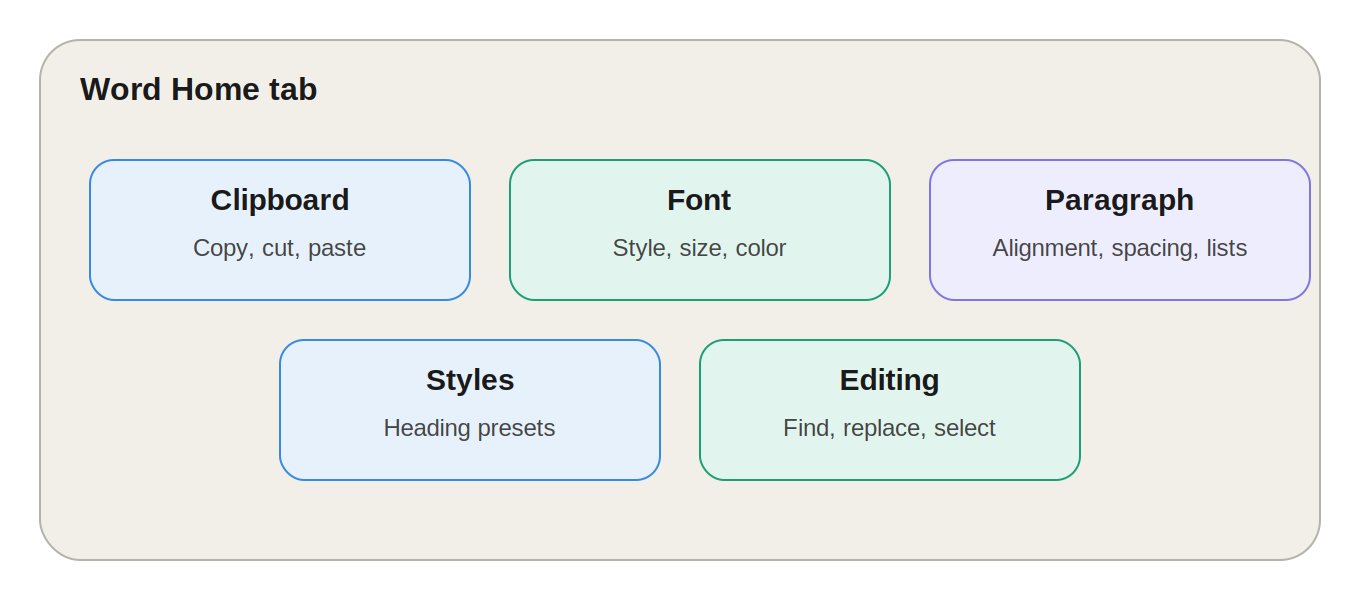
Microsoft Word का Home Tab सबसे महत्वपूर्ण और frequently used Tab है। जब भी आप Microsoft Word open करते हैं, सबसे पहले Home Tab ही दिखाई देता है।
Home Tab में text को format, edit, copy, move, align और organize करने के लिए कई ज़रूरी tools मौजूद होते हैं। यह guide students, exam preparation और daily office work — सभी के लिए उपयोगी है।
Home Tab के 5 Main Groups
Home Tab को मुख्य रूप से पाँच Groups में divide किया गया है:
- Clipboard
- Font
- Paragraph
- Styles
- Editing
इन Groups की मदद से document के लगभग सभी basic formatting और editing tasks आसानी से किए जा सकते हैं।
1. Clipboard Group
Clipboard Group Home Tab के सबसे left side में होता है। इसका उपयोग document के content को Copy, Cut और Paste करने के लिए किया जाता है।
Paste (Shortcut: Ctrl + V)
Paste का उपयोग copied या cut किए गए content को document में insert करने के लिए होता है। Dropdown arrow पर click करने पर तीन options मिलते हैं:
- Keep Source Formatting – Original formatting बनाए रखता है
- Merge Formatting – Current document की formatting से adjust करता है
- Keep Text Only – केवल text paste करता है, formatting remove हो जाती है
यह option तब खास काम आता है जब किसी website या दूसरे document से content copy करके Word में paste किया जाता है।
Cut (Shortcut: Ctrl + X)
Selected text या object को document से हटाकर Clipboard में store करता है।
Copy (Shortcut: Ctrl + C)
Selected text या object की duplicate copy बनाता है और उसे Clipboard में रखता है। Original content document में मौजूद रहता है।
Format Painter
किसी text की formatting को दूसरे text पर apply करने के लिए इस्तेमाल होता है।
उदाहरण: अगर एक heading Bold, Blue और 18 pt है और वही formatting दूसरी heading पर लगानी है, तो Format Painter उपयोग करें।
Pro Tip: Format Painter पर Double-click करने से एक ही formatting को document के कई अलग-अलग locations पर apply किया जा सकता है।
Clipboard Pane
Clipboard Group के bottom-right कोने में छोटा Dialog Box Launcher होता है, जिसे click करने पर Clipboard Pane खुलता है। यहाँ recently copied items की list दिखती है, जिन्हें दोबारा paste किया जा सकता है।
2. Font Group
Font Group text के appearance और character formatting को control करता है, और Home Tab के सबसे ज़्यादा इस्तेमाल होने वाले Groups में से एक है।
Font Name और Font Size
- Font Name से typeface बदला जाता है (जैसे Arial, Calibri, Times New Roman, Aptos)
- Font Size से text का size तय होता है (जैसे 10pt, 12pt, 14pt, 16pt, 20pt)
Grow Font और Shrink Font
- Grow Font – text का size बढ़ाता है
- Shrink Font – text का size घटाता है
Change Case
Text के letter case को बदलने के लिए इस्तेमाल होता है:
- UPPERCASE
- lowercase
- Sentence case
- Capitalize Each Word
- tOGGLE cASE
उदाहरण: microsoft word → UPPERCASE करने पर → MICROSOFT WORD
Clear Formatting
Selected text से applied formatting हटाकर उसे default formatting में वापस लाता है।
Bold, Italic, Underline
| Formatting | Shortcut |
|---|---|
| Bold | Ctrl + B |
| Italic | Ctrl + I |
| Underline | Ctrl + U |
Underline के dropdown से अलग-अलग Underline Styles और Colors भी select किए जा सकते हैं।
Strikethrough
Text के बीच horizontal line लगाता है — जैसे Old Price।
Subscript और Superscript
- Subscript – character को baseline से नीचे छोटा दिखाता है (जैसे H₂O) — Chemistry/Math में useful
- Superscript – character को baseline से ऊपर छोटा दिखाता है (जैसे X²)
Text Effects and Typography
Text पर visual effects जैसे Shadow, Outline, Glow, Reflection लगाने के लिए — headings और decorative text में उपयोगी।
Text Highlight Color और Font Color
- Text Highlight Color – text के पीछे marker जैसी highlighting करता है
- Font Color – text के characters का color बदलता है (Red, Blue, Green, Black आदि)
Font Dialog Box Launcher
Font Group के bottom-right कोने के Dialog Box Launcher से advanced Font Settings खुलती हैं — Font, Style, Size, Color, Underline Style, Effects, Character Spacing।
3. Paragraph Group
Paragraph Group alignment, indentation, spacing और lists manage करने के लिए इस्तेमाल होता है।
Bullets और Numbering
- Bullets – unordered list बनाता है (जैसे Computer, Keyboard, Mouse, Printer)
- Numbering – numbered list बनाता है (जैसे 1. Input, 2. Processing, 3. Output)
Multilevel List
Hierarchical/outline-style list बनाने के लिए इस्तेमाल होता है — बड़े documents और structured notes में बहुत useful।
उदाहरण:
1. Computer
   1.1 Hardware
   1.2 Software
       1.2.1 System Software
       1.2.2 Application Software
Increase/Decrease Indent
- Decrease Indent – paragraph को left की ओर move करता है
- Increase Indent – paragraph को right की ओर move करता है
Sort
Selected text या list को alphabetical/numerical order में arrange करता है।
उदाहरण: Zebra, Apple, Mango → Sort के बाद → Apple, Mango, Zebra
Show/Hide Formatting Marks (Ctrl + Shift + 8)
Document में hidden formatting marks — Spaces, Paragraph Marks, Tabs, Line Breaks — को show/hide करता है। Formatting problems पहचानने में बहुत useful।
Text Alignment
| Alignment | Shortcut |
|---|---|
| Align Left | Ctrl + L |
| Center | Ctrl + E |
| Align Right | Ctrl + R |
| Justify | Ctrl + J |
Justify का उपयोग books, reports और professional documents में commonly किया जाता है।
Line and Paragraph Spacing
Lines और paragraphs के बीच space control करता है (1.0, 1.15, 1.5, 2.0)। Assignments, reports और professional documents की readability बढ़ाता है।
Shading और Borders
- Shading – selected text/paragraph के background में color लगाता है
- Borders – text या paragraph के चारों ओर border लगाता है (Top, Bottom, Left, Right, Outside)
Paragraph Dialog Box Launcher
Advanced Paragraph Settings खोलता है — Alignment, Indentation, Spacing, Line Spacing, Before/After Paragraph, Special Indent।
4. Styles Group
Styles Group document में predefined formatting को quickly apply करने के लिए है। इसका सबसे बड़ा फायदा — पूरे document में consistent formatting maintain होती है।
Style Gallery
उपलब्ध predefined styles: Normal, No Spacing, Heading 1, Heading 2, Heading 3, Title, Subtitle, Quote।
Heading Styles और Document Structure
Heading 1, Heading 2, Heading 3 document की structure बनाने में useful हैं।
उदाहरण:
- Heading 1: Computer Fundamentals
- Heading 2: Computer Hardware
- Heading 3: Input Devices
SEO में Heading Styles का महत्व
Web content या blog article Word में तैयार करते समय Heading Styles का सही उपयोग document/page की structure बेहतर बनाता है:
- H1 – Main Topic
- H2 – Main Sections
- H3 – Subsections
ध्यान दें: Word के Heading 1/2/3 और HTML के H1/H2/H3 technically अलग systems हैं, लेकिन content structure बनाने का concept similar है।
Styles Pane
Styles Group के Dialog Box Launcher से Styles Pane खुलता है, जहाँ existing styles देखी, apply, modify और custom styles create की जा सकती हैं।
5. Editing Group
Editing Group Home Tab के right side में होता है और content को Find, Replace और Select करने के लिए इस्तेमाल होता है।
Find (Ctrl + F)
Document में किसी specific word या phrase को search करता है। जैसे पूरे document में "Computer" शब्द खोजना।
Replace (Ctrl + H)
किसी word/phrase को दूसरे word/phrase से replace करता है। जैसे "MS Office" को "Microsoft Office" से replace करना।
Select और Select All (Ctrl + A)
Select option से content को अलग-अलग तरीकों से select किया जा सकता है — Select All, Select Objects, Select Text with Similar Formatting।
Microsoft 365 के Additional Features
Word के नए versions में Home Tab से जुड़े कुछ extra features भी मिलते हैं:
- Dictate – speech को text में convert करता है, बोलकर document तैयार करने के लिए
- Editor – spelling, grammar, clarity और writing suggestions देता है
- Sensitivity – कुछ workplace accounts में data classification/sensitivity labels apply करने के लिए
Quick Revision Table
| Group | Main Functions |
|---|---|
| Clipboard | Cut, Copy, Paste, Format Painter |
| Font | Font, Size, Bold, Italic, Underline, Color |
| Paragraph | Bullets, Numbering, Alignment, Spacing, Borders |
| Styles | Normal, Heading, Title, Subtitle, Quote |
| Editing | Find, Replace, Select |
Keyboard Shortcut Cheat Sheet
| Action | Shortcut |
|---|---|
| Copy | Ctrl + C |
| Cut | Ctrl + X |
| Paste | Ctrl + V |
| Bold | Ctrl + B |
| Italic | Ctrl + I |
| Underline | Ctrl + U |
| Align Left | Ctrl + L |
| Center | Ctrl + E |
| Align Right | Ctrl + R |
| Justify | Ctrl + J |
| Find | Ctrl + F |
| Replace | Ctrl + H |
| Select All | Ctrl + A |
| Clear Formatting | Ctrl + Spacebar |
| Show/Hide Formatting Marks | Ctrl + Shift + 8 |
Exam के लिए Important Points (FAQs)
1. MS Word में Home Tab का मुख्य उद्देश्य क्या है? Text formatting और basic editing से जुड़े commands को access करना।
2. Clipboard Group में कौन-कौन से मुख्य tools होते हैं? Paste, Cut, Copy और Format Painter।
3. Font Group का उपयोग किसलिए होता है? Text की appearance और character formatting बदलने के लिए।
4. Paragraph Group का उपयोग किसलिए होता है? Paragraph alignment, indentation, spacing, bullets, numbering और borders के लिए।
5. Home Tab में कितने मुख्य Groups होते हैं? पाँच — Clipboard, Font, Paragraph, Styles, Editing।
6. Format Painter क्या है? Existing text की formatting को copy करके दूसरे text पर apply करने के लिए उपयोग होता है।
7. Show/Hide Formatting Marks क्या है? Document में hidden formatting marks जैसे Spaces, Tabs और Paragraph Marks दिखाने का option; Shortcut: Ctrl + Shift + 8
8. MS Word में Styles का क्या उपयोग है? Document में consistent formatting बनाए रखने के लिए — Normal, Heading 1, Heading 2, Title, Subtitle, Quote जैसे predefined styles के ज़रिए।
9. Find और Replace का उपयोग कैसे किया जाता है? Find (Ctrl + F) किसी word/phrase को search करता है; Replace (Ctrl + H) उसे दूसरे word/phrase से बदलता है।
10. Paragraph Alignment कितने प्रकार के होते हैं? चार — Align Left (Ctrl+L), Center (Ctrl+E), Align Right (Ctrl+R), Justify (Ctrl+J)।
निष्कर्ष (Conclusion)
MS Word का Home Tab document creation और formatting का सबसे महत्वपूर्ण हिस्सा है, जिसमें Clipboard, Font, Paragraph, Styles और Editing जैसे पाँच Groups शामिल हैं।
Professional document, assignment, report, notes या educational content तैयार करने के लिए Home Tab के इन सभी tools की जानकारी होना ज़रूरी है।
Exam point of view से सबसे महत्वपूर्ण topics: Clipboard, Font Formatting, Paragraph Alignment, Bullets & Numbering, Multilevel List, Styles, Find, Replace और Keyboard Shortcuts।
💬 Leave a Comment & Rating