MS Word References Tab
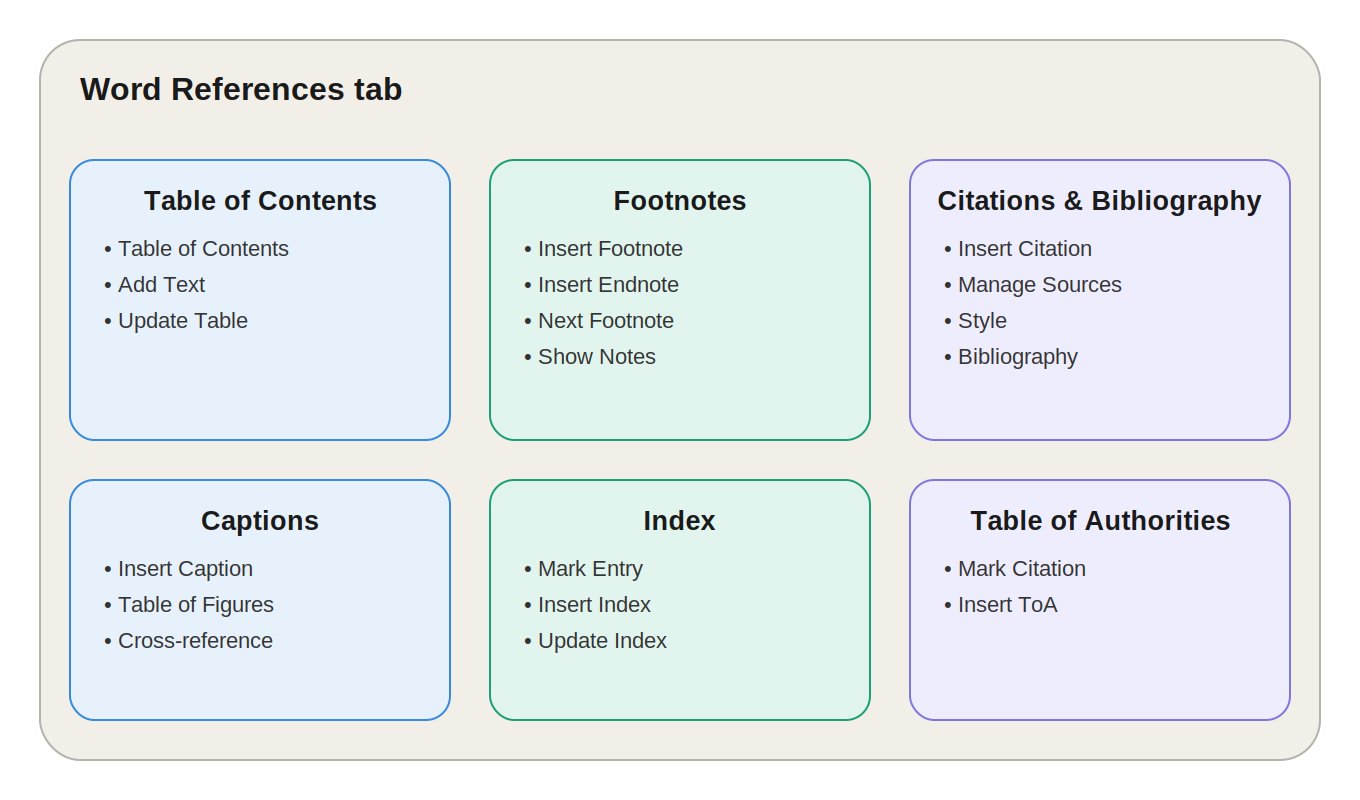
MS Word Ribbon में References Tab, Layout Tab के बाद आता है। यह Tab खासतौर पर long और structured documents — जैसे Research Paper, Thesis, Project Report, Books और Legal Documents — को व्यवस्थित करने के लिए डिज़ाइन किया गया है।
इसकी मदद से Table of Contents, Footnotes, Citations, Bibliography, Captions, Index और Table of Authorities को manually टाइप करने के बजाय automatically generate और update किया जा सकता है — जिससे समय की बचत होती है और गलतियों की संभावना कम हो जाती है।
References Tab के 6 मुख्य Groups होते हैं:
- Table of Contents
- Footnotes
- Citations & Bibliography
- Captions
- Index
- Table of Authorities
1. Table of Contents Group
Table of Contents
Word में लगाई गई Heading Styles (Heading 1, Heading 2, आदि) के आधार पर एक automatic, clickable Table of Contents (TOC) बनता है — page numbers के साथ।
Example:
| Topic | Page |
|---|---|
| Introduction | 1 |
| Computer Fundamentals | 5 |
| Operating System | 15 |
| Conclusion | 40 |
TOC की किसी entry पर click करके सीधे उस section पर पहुँचा जा सकता है।
Add Text
अगर किसी text पर Heading Style लागू नहीं है, फिर भी Add Text से उसे किसी specific Heading Level पर TOC में जोड़ा जा सकता है।
Update Table
Headings या page numbers बदलने पर Update Table से TOC को refresh किया जाता है — यह नए headings जोड़ता है, हटाई गई headings निकालता है और page numbers अपडेट करता है।
📌 Exam Point: TOC को latest रखने के लिए हमेशा Update Table का इस्तेमाल करें।
2. Footnotes Group
Insert Footnote
Current page के नीचे एक numbered note जोड़ता है — Research Papers और Academic Documents में बहुत common।
Shortcut: Ctrl + Alt + F
Example: Main text में: Computer is an electronic device.¹ Page के नीचे: ¹ Computer processes data to produce information.
Insert Endnote
Footnote जैसा ही काम करता है, लेकिन note document के अंत में आता है, current page पर नहीं।
| Footnote | Endnote |
|---|---|
| Current page के नीचे | Document के अंत में |
| छोटे notes के लिए | पूरे document के notes के लिए |
| Academic documents में common | Research documents में common |
Next Footnote और Show Notes
Next Footnote से एक Footnote से दूसरे पर quickly navigate किया जा सकता है, और Show Notes से Footnotes/Endnotes की location document में दिखाई जाती है।
3. Citations & Bibliography Group
Research Paper, Thesis और Academic Assignments में sources manage करने के लिए यह group इस्तेमाल होता है।
Insert Citation
Document में in-text citation जोड़ता है, जैसे: (Sharma, 2025) — इससे बार-बार manually citation टाइप नहीं करनी पड़ती।
Manage Sources
Sources add, edit, delete करने और उनकी पूरी list देखने के लिए। Source types में Book, Journal Article, Website, Report, Conference Paper शामिल हैं।
Style
Citation format चुनने के लिए — जैसे APA, MLA, Chicago, IEEE। उदाहरण के लिए, university ने APA मांगा है तो Style से APA select करें।
Bibliography
चुनी गई Citation Style के अनुसार, cited sources की automatically formatted list बनाता है।
📌 Exam Point: Sources की organized list बनाने के लिए Bibliography इस्तेमाल होता है।
4. Captions Group
Images, Tables, Charts और Figures को properly label व reference करने के लिए।
Insert Caption
Image/Table/Figure के साथ numbered caption जोड़ता है, जैसे: Figure 1: Sales Growth Chart — Word कई figures होने पर automatically numbering maintain करता है।
Insert Table of Figures
Document में मौजूद सभी captioned figures/tables की automatic list बनाता है — यह TOC जैसा ही है, बस इसका फोकस Figures/Tables पर होता है।
| Figure | Page |
|---|---|
| Figure 1: Sales Chart | 5 |
| Figure 2: Growth Chart | 10 |
| Figure 3: Comparison | 18 |
Cross-reference
Document के किसी दूसरे हिस्से में मौजूद Figure, Table या Heading का reference insert करता है, जैसे: See Figure 3 for detailed information. Figure की position बदलने पर इसे update किया जा सकता है।
5. Index Group
Long documents, Books और Manuals में important words/topics की alphabetical list बनाने के लिए।
Mark Entry
किसी selected word/phrase को Index में शामिल करने के लिए mark करता है।
Shortcut: Alt + Shift + X
Insert Index
Marked entries के आधार पर automatic alphabetical Index बनाता है — आमतौर पर Books और Manuals के अंत में दिखता है।
| Topic | Page |
|---|---|
| Database | 25 |
| Operating System | 45 |
| Programming | 60 |
| Software | 72 |
Update Index
नई entries जोड़ने या page positions बदलने के बाद Index को latest information के अनुसार refresh करता है।
6. Table of Authorities Group
मुख्य रूप से Legal Documents और Court Filings में legal citations को organized form में list करने के लिए।
Mark Citation
किसी legal citation (Court Cases, Statutes, Rules, Regulations) को Table of Authorities में शामिल करने के लिए mark करता है।
Shortcut: Alt + Shift + I
Insert Table of Authorities
Marked legal citations की page numbers सहित automatic categorized list बनाता है — Legal Briefs, Court Filings, Case Documents में उपयोगी।
Quick Revision Table — References Tab के सभी Groups
| Group | मुख्य काम |
|---|---|
| Table of Contents | Document की contents list बनाना |
| Footnotes | Page के नीचे notes देना |
| Citations & Bibliography | Sources और citations मैनेज करना |
| Captions | Figures/Tables को label करना |
| Index | Important topics की alphabetical list बनाना |
| Table of Authorities | Legal citations की list बनाना |
References Tab का Real-Life Use
| Document Type | कौन-से Features उपयोगी हैं |
|---|---|
| Research Paper | Table of Contents, Citations, Footnotes, Bibliography |
| Thesis | TOC, Footnotes, Figures/Tables, Cross-reference, Bibliography |
| Project Report | TOC, Captions, Table of Figures, Citations |
| Books/Manuals | TOC, Index, Captions, Cross-reference |
| Legal Documents | Footnotes, Citations, Table of Authorities |
Layout Tab vs References Tab
| Layout Tab | References Tab |
|---|---|
| Page Layout control करता है | Document References मैनेज करता है |
| Margins | Table of Contents |
| Orientation | Footnotes |
| Page Size | Citations |
| Columns | Bibliography |
| Page Breaks | Captions |
| Paragraph Spacing | Index |
| Object Arrangement | Table of Authorities |
💡 Simple Trick: Layout = Page की Structure, References = Document की Sources & References
Important Keyboard Shortcuts
| Shortcut | Function |
|---|---|
Ctrl + Alt + F |
Insert Footnote |
Alt + Shift + X |
Mark Index Entry |
Alt + Shift + I |
Mark Citation |
Ctrl + Home |
Document के Start पर जाना |
Ctrl + End |
Document के End पर जाना |
10 One-Liner Question-Answer (Exam के लिए Important)
- References Tab का मुख्य उपयोग क्या है? → Long documents में TOC, Citations, Footnotes और Index मैनेज करना।
- Table of Contents किस आधार पर बनता है? → Document में applied Heading Styles के आधार पर।
- Insert Footnote की Shortcut क्या है? → Ctrl + Alt + F।
- Bibliography का क्या उपयोग है? → Cited sources की formatted list बनाना।
- Index क्या होता है? → Important topics की alphabetical list, page numbers के साथ।
- Mark Entry की Shortcut क्या है? → Alt + Shift + X।
- Table of Authorities कहाँ इस्तेमाल होता है? → Legal Documents और Court Filings में।
- Cross-reference क्या करता है? → Document के किसी और हिस्से का reference insert करता है।
- Update Table किसलिए इस्तेमाल होता है? → TOC को नई headings/page numbers के अनुसार refresh करना।
- Mark Citation की Shortcut क्या है? → Alt + Shift + I।
FAQ:
1. MS Word में References Tab का उपयोग किसलिए किया जाता है? Long documents में Table of Contents, Footnotes, Citations, Bibliography, Captions, Index और Legal Authorities मैनेज करने के लिए।
2. Table of Contents किसके आधार पर बनता है? मुख्य रूप से document में applied Heading Styles (Heading 1, Heading 2, आदि) के आधार पर automatically generate होता है।
3. Insert Footnote की Shortcut Key क्या है? Ctrl + Alt + F।
4. Bibliography का क्या उपयोग है? Document में उपयोग किए गए Sources/Citations की automatically formatted list बनाने के लिए।
5. Index क्या होता है? Document में मौजूद important words/topics की alphabetical list, page numbers सहित।
6. Mark Entry की Shortcut Key क्या है? Alt + Shift + X।
7. Table of Authorities का उपयोग कहाँ होता है? मुख्यतः Legal Documents, Court Filings और Legal Briefs में legal citations व्यवस्थित करने के लिए।
8. Cross-reference क्या है? Document के किसी दूसरे section, Figure, Table या Heading का reference insert करने के लिए उपयोग होता है।
निष्कर्ष (Conclusion)
References Tab MS Word का वह टूल है जो लंबे और structured documents — जैसे Research Papers, Thesis, Reports और Legal Documents — को professionally organize करने में मदद करता है। Table of Contents से लेकर Citations, Footnotes, Index और Table of Authorities तक, इन features की सही समझ आपके academic और professional documents को ज़्यादा accurate, organized और credible बनाती है।
💬 Leave a Comment & Rating